
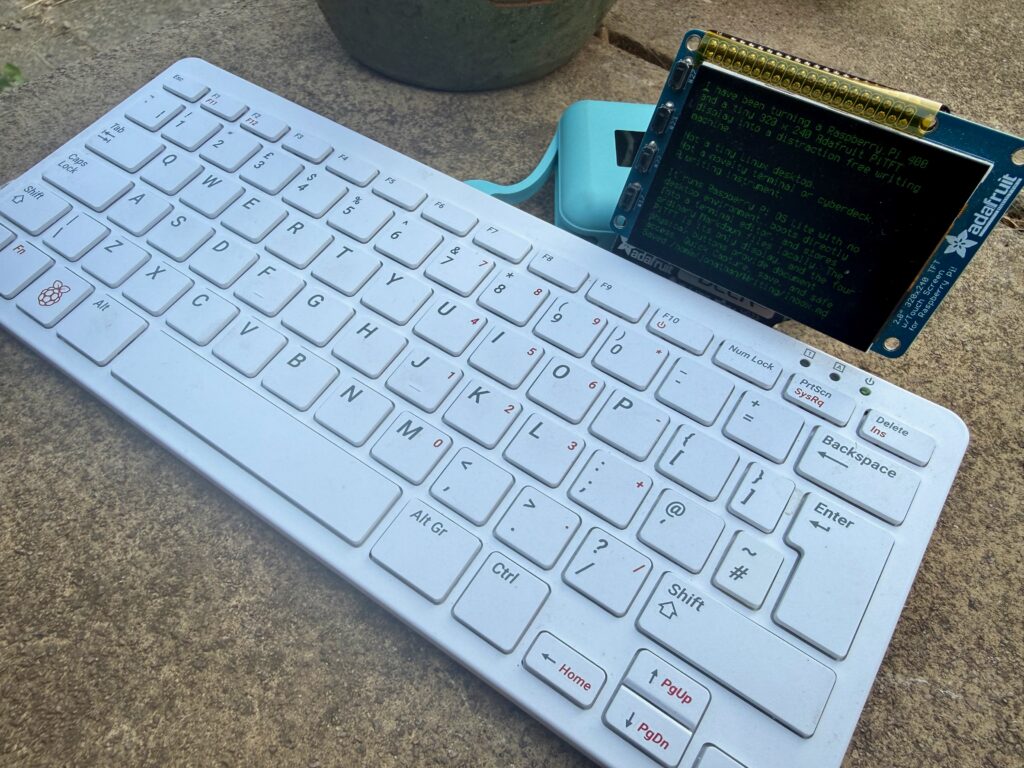
I have been turning a Raspberry Pi 400 and a tiny 320×240 Adafruit PiTFT display into a distraction-free writing machine.
Not a tiny Linux desktop or cyberdeck.
A writing instrument with one purpose.
The PiTFT is its only display, connected at the rear using an Adafruit CyberDeck GPIO angled adapter. For quite a while, I had a vague idea that this collection of parts might become a writing machine. My original assumption was that I would install FocusWriter, hide as much of Raspberry Pi OS as possible and make the small display behave like a miniature desktop.
The more I thought about it, the less convincing that became.
A 320×240 display is not a small desktop monitor. Trying to make it behave like one would mean spending precious screen space on window furniture, toolbars, status areas and graphical conventions designed for much larger displays.
What I actually wanted was much simpler:
- Switch it on
- Begin writing
- Trust that the machine has everything else under control
That led to a different design starting with no desktop. The system runs Raspberry Pi OS Lite rather than the full desktop edition.
There is no LXDE, no Wayland session, no X server, no graphical file manager and no mouse. The PiTFT is configured as the Linux console itself, and the Pi boots directly into a terminal text editor.
The initial setup can still be completed remotely over SSH. That was particularly useful because the PiTFT does not work automatically on a clean Raspberry Pi OS installation. The operating system, Wi-Fi credentials, hostname, and SSH access can all be configured in Raspberry Pi Imager before the first boot.
Once the PiTFT drivers are installed, the tiny screen becomes the only display the device needs.
Micro over nano
I considered nano, vim, WordGrinder, and writing a custom editor from scratch.
Vim is extraordinarily capable, but learning modal text editing was not part of the activity I wanted to encourage. The aim was to reduce friction, not replace one set of distractions with a new tool to master.
Nano is approachable and a tool I’ve used for years when I ran my own Linux root server, but it permanently dedicates several lines to shortcut reminders at the bottom of the screen. On a 240-pixel-high display, those lines are expensive.
WordGrinder is genuinely interesting and is designed around first-draft writing, but its document format is less directly interoperable than ordinary Markdown files.
For now, I have settled on Micro.
Micro provides familiar keyboard shortcuts such as:
- Ctrl+S Save
- Ctrl+O Open
- Ctrl+F Find
- Ctrl+Z Undo
- Ctrl+Y Redo
It works directly in the terminal, supports soft wrapping, and can be stripped back to almost no persistent interface.
The writing remains ordinary text files so Markdown is just stored in ordinary files.
This simplicity matters and keeps the output as open and transferable as possible. It should remain easy to open later in Obsidian, Zed, Visual Studio Code, or any other text editor.
A 1980s workstation rather than a fake CRT
The visual idea is deliberately reminiscent of an early monochrome workstation mainframe terminal: black background; green text; fixed-width type; no mouse; no toolbar; no fake scan lines, blur, flicker or screen curvature.
The aim is not to imitate the imperfections of a cathode-ray tube on a sharp LCD. It is to borrow the discipline of interfaces created when every character position mattered.
The result should feel like a small purpose-built machine, not a Linux desktop squeezed into a letterbox.
Physical buttons as part of the interface
The PiTFT display has four hardware buttons. In its current orientation, they map from top to bottom as:
- GPIO27
- GPIO23
- GPIO22
- GPIO17
They currently provide four appliance-level actions:
- Open documents
- Quick Capture
- Save and archive checkpoint
- Hold to shut down safely
The buttons are handled by a small Python service using GPIO Zero and Linux’s virtual input system.
The service does not attempt to control Micro through a graphical automation layer. It emits ordinary keyboard shortcuts, while Micro handles the editor-specific behaviour.
The shutdown button requires a deliberate hold. It saves the active document, creates a checkpoint, flushes filesystem writes, and requests a clean system shutdown.
Quick Capture without losing the thread
Pressing the display’s second physical button temporarily switches from the current document to a dedicated QuickCapture.md file.
Press it again and Micro saves the Quick Capture file and returns to the previous document that was open.
This approach does not use visible tabs. I tried using Tabs for a bit but they introduce a bar across the top of the screen which consumes more of the already limited display.
Instead, a small Micro Lua function was written to record the current file path and swap the single visible buffer between the working document and the Quick Capture file.
The interaction is:
Writing an article -> physical button press ->capture an unrelated thought -> physical button press -> return to the article.
The technology is present, but the context switch is kept as small as possible.
Git as a flight recorder
The writing directory which Micro opens into is also a local Git repository. The writer does not need to know that. The use of Git is deliberately non-technical and handled entirely by the scripts and setup.
Git is being used as an invisible storage engine which periodically creates Git commits to afford data recovery if needs be.
There are still separate layers of protection:
- Micro’s normal undo and redo history
- frequent local file saves trigger by the writer
- periodic Git checkpoints triggered by a system timer
- eventually, remote synchronisation.
Those layers solve different problems and so Git is not being shoe-horned in as a cumbersome substitute for ordinary quick undo operations.
Local first
One of the main design goals of this project was that the machine must work fully offline. A simple power supply of either battery or mains adapter is all that’s needed to get started.
Documents are always written to local storage first. Wi-Fi could be useful for synchronisation and maintenance, but it should never be a prerequisite for writing. It should also not invite additional distractions just because exporting is handy.
I originally wondered whether the Pi could mount iCloud Drive directly. In practice, Apple does not provide a supported Linux iCloud Drive client, and placing a fragile reverse-engineered cloud integration in the critical saving path would undermine the entire idea.
Why not just use a laptop?
This is not intended to be the most capable computer available to me. It is intended to remove the gap between deciding to write and actually writing and doing so in a way that removes distractions. As I intentionally only one piece of software on it, I can’t check emails, browse the web, watch a YouTube video etc.
The broader design principles
During the process, two statements emerged that describe more than this one project:
- Great tools don’t ask users to become experts in the tool. They quietly embody the expertise required for the task.
- Technology should become less visible as it becomes more useful and magical.
A writer should not need to learn Git to benefit from version history. They should not need to understand Linux boot targets to resume the last document. They should not need to make daily decisions about where files live, how often they are saved, or whether a network is available.
The device carries that burden in such a way that after switching it on, I no longer have to think about these concerns and can begin writing.
Where the scripts live
The implementation is changing quickly as the hardware is tested. Rather than embedding large copies of scripts in this article that will likely become stale, the current source will live in GitHub when its stable enough to do so.
The repository will include:
- Raspberry Pi OS setup notes
- Adafruit PiTFT installation details
- Micro configuration
- the Quick Capture Lua function
- GPIO button service
- systemd units
- Git checkpoint script
- recovery and troubleshooting notes.
In conclusion
It is a small project, but it is a useful test of a much bigger idea:
How can technology quietly absorb complexity and embody good practice, so that the person using it can concentrate entirely on the task at hand?